The image studio that lives inside Nia
You ask for an image out loud and it appears in your camera roll. You tap whoever is in the way in a photo and they are gone. All inside the same app, with no exporting, no importing and no losing the original.
Four steps, and not one of them is a menu
-
You ask for it out loud
In a normal sentence. You say what you want to see and, if you feel like it, in what shape. There are no fields to fill in and no settings to work out.
-
It appears in your camera roll
Nia saves it by itself to the Nia album in the Photos app. There is nothing to download and no gallery to go looking in: it is where your photos are.
-
You open it in the studio
From the result card, or from the Photos share sheet with any photo of yours. That is where you take out what you do not want, change the background and adjust the light.
-
You save a new version
The original is never touched. What you save is another photo, so you can always go back to the one from before.
One sentence, and the image is in Photos
The awkward part of making images on a phone is not making them: it is what comes next. Download it, find the folder, move it to the camera roll. Nia skips all of that, because it writes straight into the Photos app.
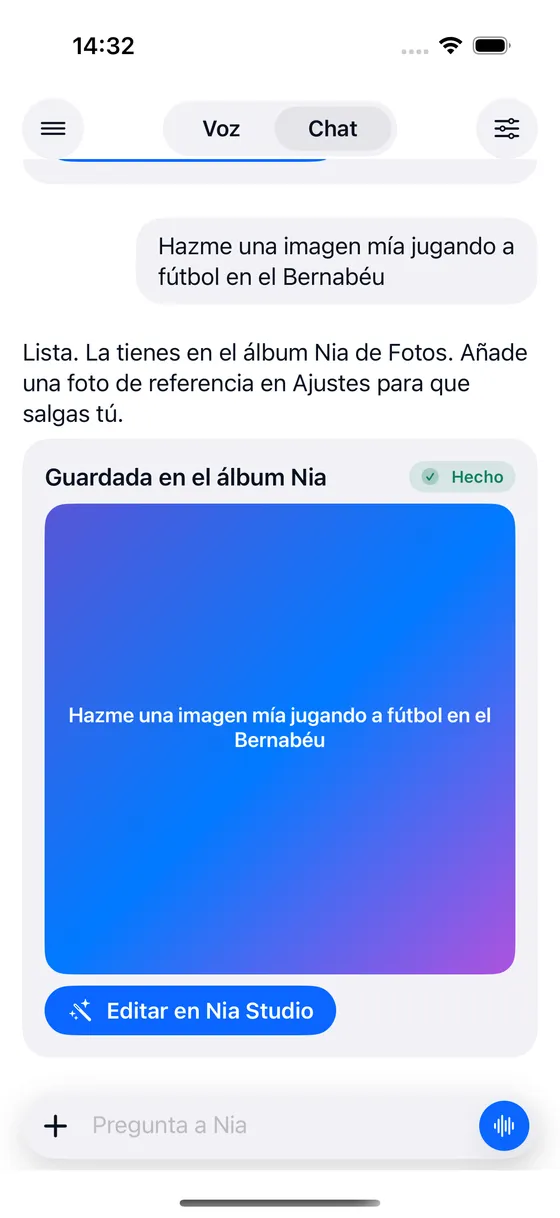
- "Make me an image of me playing football and save it to Photos"
- "A beach at sunset, vertical for stories"
- "The same but in black and white, in 4K"
- It goes to the Nia album. An album of its own inside your Photos, so they do not get mixed in with the rest.
- You can be in it. If you have given it a reference photo in Settings, it uses that so the person in the image is you.
- The shape you ask for. Square, vertical for stories, landscape or 4:5, said in those words.
- HD or 4K. If you do not say which, Nia asks you with two buttons instead of spending the good one without warning.
You tap what you do not want and it goes
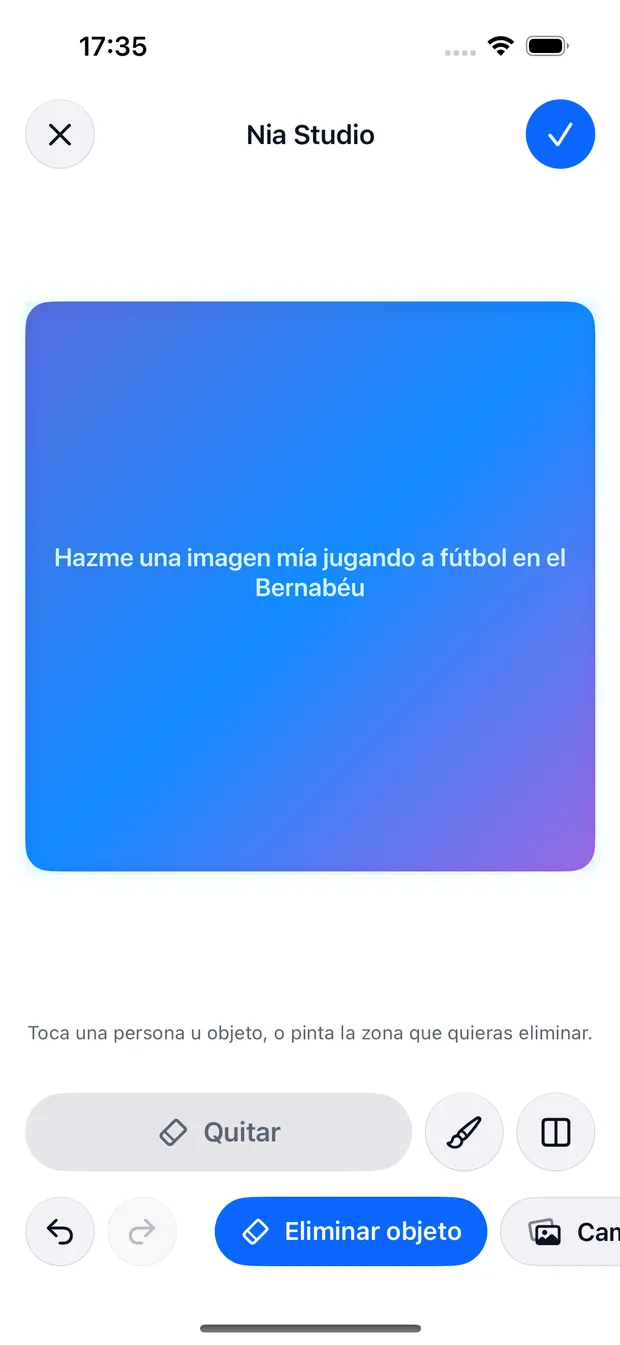
The same idea as taking someone out of the background with a finger, but asked for out loud and with five more things behind it. It works on the images Nia makes and on any photo of yours.
Take out what you do not want
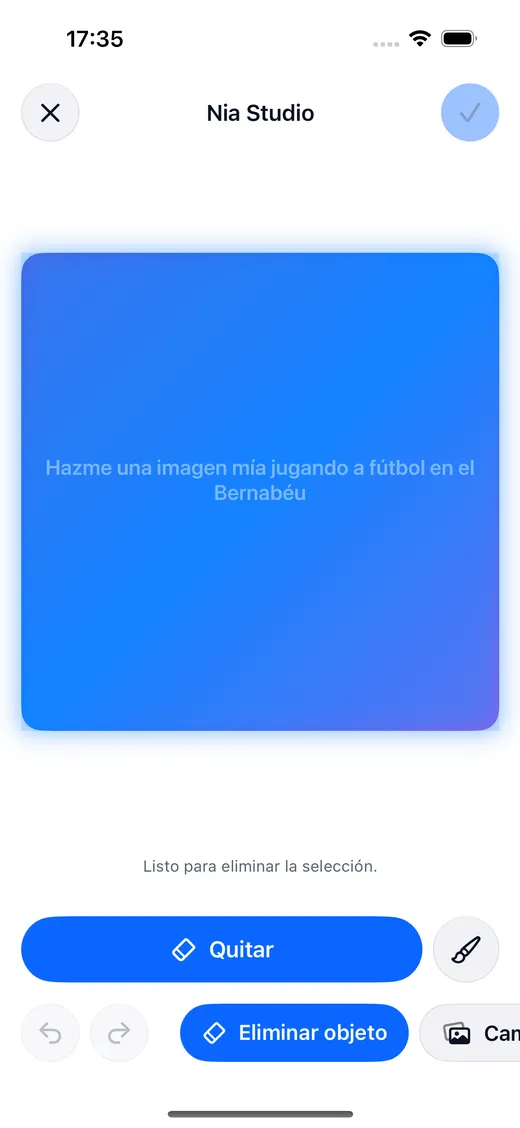
You tap the person or the object in the way, or paint the area by hand. Nia deletes it and fills the gap with what was behind it.
Change the background
You tell it the new scene and it cuts the subject out and puts it there. The cutout is computed on your iPhone; the fill, on the server.
Improve the light
Auto light, more sharpness, a warm or cool cast, or black and white. The things that fix a photo in two seconds.
Change the style
The same scene told another way. You say the style and it rewrites the whole thing.
Crop for social media
Square, vertical for stories, landscape. You say where it is going and out it comes in that shape.
Put text on it
A caption over the image, without leaving the app and without opening anything else.
What makes you willing to try things
Before and after
A control you drag over the photo itself to see what has changed, instead of trusting your memory.
Undo and redo
Every step can be walked back. Trying something does not cost you the photo.
The cutout does not leave the iPhone
The mask that separates the person from the background is computed by the phone itself. What travels, when it travels, is the area to be filled.
It says when it is not exact
If the cutout came out rough, the card writes it down. And if the fill was done by the phone because the AI was not available, it says that too.
You can come in from the other side too
You do not have to start in Nia. Open a photo in the Photos app, press share and choose Nia Studio: the photo arrives in the studio and you carry on from there.
- Any photo in your camera roll, not only the ones Nia made.
- The original stays as it is. What you save is a new copy, so the photo from before is still there.
- Deleting a photo is confirmed by you. iOS does not let an app delete from the camera roll without showing you its own prompt, so Nia does not do it on its own: it tells you where the image is and you decide.
And six seconds in motion, on the Pro plan
The Pro plan makes six second videos and saves them to Photos the same way as the images, with a progress indicator in the Dynamic Island while it works. It can animate a photo of yours or invent the whole scene.
"Animate this photo" or "make me a video of waves at sunset"
Six videos a month on Pro. It is not in Free or in Plus, and the app says so before it tries.
Images keep their own count
| Free | Plus | Pro | |
|---|---|---|---|
| Images | 3 in total | 25 a month | 60 a month |
| Of those, in 4K | none | 3 a month | 10 a month |
| 6 second videos | none | none | 6 a month |
| Nia Studio editor | no | yes | yes |
| Editing without opening the studio | no | yes | yes |
Making an image does not spend any of the commands for the day: it has a monthly count of its own. See the three plans
About Nia Studio
Does Nia generate images?
Yes, and it saves them to a "Nia" album in your Photos. The free plan comes with three images in HD; Plus gives 25 a month and Pro 60, with a few of them in 4K. If you give it a reference photo, you can be in the image yourself. And Nia Studio, the editor, removes objects and people, changes the background and restyles, with the masks computed on the iPhone itself.
Where are the images Nia creates saved?
In the Photos app on your iPhone, in an album called Nia. There is nothing to download and no separate gallery to look in: they appear in your camera roll like any other photo, and from there you share them, edit them or delete them like the rest.
Can I use Nia to edit a photo it did not create?
Yes. Open the photo in the Photos app, press share and choose Nia Studio: the photo arrives in the studio and you work on it there. You can also just ask out loud, and it takes the last photo in your camera roll or the one you point it at.
Does editing a photo lose the original?
No. Nia always saves a new version and leaves the original untouched, so you can go back to it whenever you want. Inside the studio, every step can also be undone and redone, and there is a control to compare before and after on the photo itself.
Can Nia delete photos from my camera roll?
Not on its own. iOS requires its own confirmation prompt every time an app wants to delete something from the camera roll, so Nia does not do it without you: it tells you where the image is and you delete it yourself from Photos. What it does delete without asking is what you do not want inside the image, which is another matter.
Is it the same as Apple Intelligence?
It is alike in the part you notice most: you tap what you do not want in a photo and it disappears, and the cutout is computed on the iPhone itself. Two things are different. The first is that you ask Nia out loud, in the same conversation where you ask it for anything else. The second is that it does more: it generates the image from scratch, replaces the background with a new scene, changes the style, crops for social media and puts text on it. And when a cutout comes out rough, the card says so instead of hiding it.
Try it on a photo of yours
The first three images are free and in high quality. The free plan asks for no card.
Free to start. Requires iOS 18. In English and Spanish.